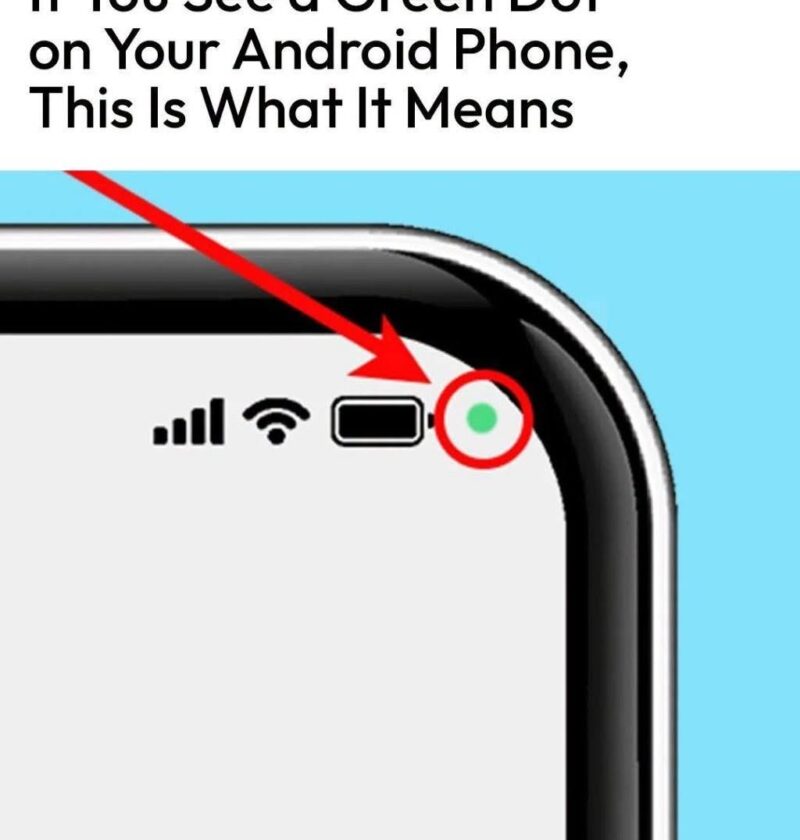
The green dot in the upper-right corner of an Android phone is a privacy indicator. It appears when an app is using your phone’s camera or microphone.
What it means:
- 🟢 Green dot = camera or microphone is active
- An app may be taking a photo, recording video, making a video call, using voice input, or accessing the microphone for another feature.
How to find which app is using it
- Swipe down from the top of the screen to open Quick Settings/notifications.
- Tap the green indicator (on many Android versions).
- Your phone should show which app is currently using the camera or microphone.
If you don’t recognize the app
- Go to Settings → Privacy → Permission Manager (wording may vary by phone).
- Check which apps have access to Camera and Microphone.
- Remove permissions from apps that do not need them.
When it’s normal
The dot may appear during:
- Video calls
- Voice recordings
- Camera use
- Voice assistants
- Apps that use voice or video features
When to investigate
If the dot appears when you are not using any app that should need the camera or microphone, check permissions and update or uninstall suspicious apps.
This feature was introduced in newer versions of Android as part of Google’s privacy controls, helping you see when sensitive sensors are being accessed.